
How to Check the Status of Your New Jersey Civil Case Online: A Guide for Business Owners
Key Takeaways for Business Owners
Your docket number, also called the case number, helps you find and check your case online.
Separate it into the county, docket type, six-digit docket number, and docket year.
The electronic case jacket shows available filings, court activity, the assigned judge, and the case status.
The New Jersey Courts public-access portal does not explain what a filing means or whether your business must respond.
Do not wait for the online record to update before addressing a deadline in your Summons or other court papers.
If you or your business has been sued in New Jersey, you likely want to know what has happened since you received the Summons and Complaint.
The New Jersey Courts portal lets you search for the case and open its electronic case jacket. Using the docket number, you can view available filings, court activity, the assigned judge, and the case status. The challenge is knowing where to click and how to enter the docket number correctly.
This guide walks you through the New Jersey civil case search process step by step, from finding the docket number on your court papers to opening the case jacket and viewing or downloading the available filings.
How to Search for Your New Jersey Civil Case Online
Before you begin, take out the Summons you received. Near the top, you should see a docket number, which may also be identified as the case number. These terms refer to the same identifying number assigned to your lawsuit.
That docket number is the most direct way to check the status of your New Jersey lawsuit. You will need to separate the number into its individual parts when completing the search fields.
What You Need Before You Begin
Have the following ready before opening the public-access portal:
Your Summons: The Summons should contain the docket number or case number assigned to the lawsuit. You will use the different parts of this number to search for your case.
A New Jersey Courts user account: You must register for an account before accessing civil and foreclosure case jackets. If you already have credentials for another New Jersey Courts service, such as eCourts or the Judiciary Electronic Document Submission system, you should use the same login information.
How to Read the Docket Number on Your Summons
A New Jersey civil docket number looks like this:
BER-L-001234-26
Each part of the docket number tells you something about the case and corresponds to a field in the online search system.
Part | What It Identifies | What You Select or Enter |
BER | The county where the case was filed | Bergen County |
L | The docket type | Civil Part |
001234 | The six-digit docket number | 001234 |
26 | The docket year | 2026 |
What this means is that the first three letters identify the county. The letter or letters after the first hyphen identify the docket type, which is simply the part of the New Jersey Court System that is handling your case. Other New Jersey civil docket types you may encounter include:
SC: Small Claims
The next six digits are the individual docket number, and the final two digits identify the year in which the case was filed.
How to Find and Review Your Case in the New Jersey Courts Portal
Step 1: Register for or Log In to the New Jersey Courts Portal
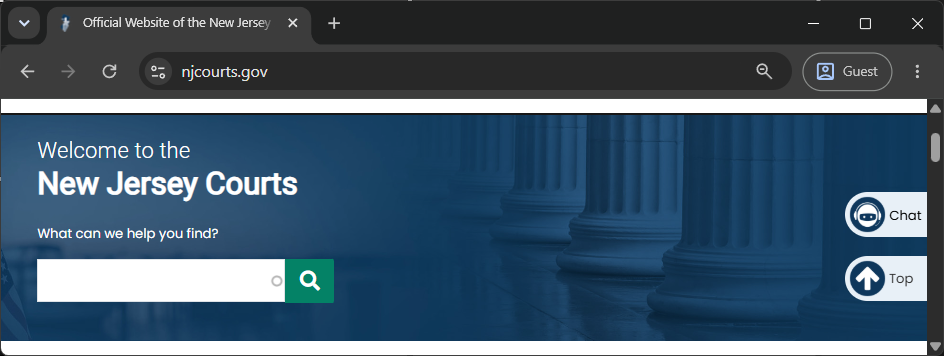
Go to the New Jersey Courts website. In the top-right corner of the homepage, click “Portal Log In.”
You will be taken to the NJCourts Online login page. Enter your login ID and password, then complete the second verification step if prompted.
If you do not already have an account, select the registration option and follow the instructions to create one before continuing.
Step 2: Open “Find a Case – Public Access”
Once you are logged in, the portal will display a dashboard of available applications.
Locate the application labeled “Find a Case – Public Access.” It has a magnifying-glass icon. Click the tile to reveal a dropdown list of public case-search options.
From there, select “Civil and Foreclosure Cases.”
Step 3: Select the Type of Case
You will be redirected to the case-search page. At the top, locate the dropdown labeled “Search for Case.” Use it to select the part of the court where your lawsuit is filed.
The docket type in your case number will help you choose the correct option. For example, the “L” in BER-L-001234-26 indicates that you should select “Civil Part.”
Step 4: Search by Docket Number
Below the “Search for Case” dropdown, you will see the “Search for Case Jacket” section. Make sure to select the “Search By Docket Number” tab.
Using BER-L-001234-26 as an example, enter:
Case County: Bergen
Docket Type: Civil Part (L)
Docket Number: 001234
Docket Year: 26
Then click “Search.”
Step 5: Open and Verify the Case Jacket
Once the search results appear, select the docket number to open the electronic case jacket. You will see a summary of the case at the top of the page. Before reviewing the activity, confirm that you have found the correct lawsuit.
Compare the following information with the Summons and Complaint you received:
The case caption
The plaintiff’s name
Your name or your company’s legal name
The county
The docket number
The date the case was filed
Step 6: Review the Case Jacket
Below the case summary is the “Case Actions” table. This table provides a chronological record of the activity in the lawsuit. It includes the following columns:
Filed Date: The date the document or court action was filed
Filings: Icons you can select to view documents connected to the entry
Docket Text: A short description of the filing or court action
Transaction ID: The court system’s identifying number for that entry
Entry Date: The date the entry was added to the case jacket
Under “Filings,” you will see two different icons:
Paperclip icon: Click this icon to open or download the actual document filed with the court, such as a Complaint, motion, or amended pleading.
Envelope icon: Click this icon to view the electronic filing notification or cover email associated with that filing.
Not every entry will include both icons. Some rows may only contain a court notice, docket entry, or case update rather than a separate filed document.
Are you unsure what the case activity means for your business? Our New Jersey civil litigation attorneys can review the filings, identify any immediate concerns, and help you understand the next legal step.
What If Your Case Does Not Appear in the Search Results?
If the case does not appear, first confirm that you selected the correct court section and entered the county, docket type, six-digit docket number, and two-digit year correctly. Some cases or documents may also be confidential, archived, or otherwise unavailable through public access.
Speak to Our New Jersey and New York Civil Litigation Attorneys Today
If your business has been sued, a new document has appeared in the case jacket, or you are unsure whether you need to respond, Stature Legal can review the record with you, help you identify any immediate deadlines, and explain your options.
Our business litigation lawyers, Daniel Bitonti and Thomas Przybylowski, can review what appears in your case jacket, explain what the filings mean for your business, and help you determine whether a response or other action is required.
Are you wondering about any of the issues mentioned above? Please email us at Info@staturelegal.law or call (732) 320-9831 for assistance.
At Stature Legal, we give business owners the clarity they need to fund, grow, protect, and sell their businesses. We are trustworthy business advisors keeping your business on TRACK: Trustworthy. Reliable. Available. Caring. Knowledgeable.®
FAQs
Is the Docket Number the Same as the Case Number?
In this context, yes. The docket number may also be referred to as the case number. It is the unique number assigned to the lawsuit and usually appears near the top of the Summons or Complaint. A New Jersey Civil Action Summons includes a field labeled “Docket No.” in the case caption.
Do I Need an Account to Search for a New Jersey Civil Case?
Yes. First-time users must register with the New Jersey Courts before they can search civil and foreclosure cases through the public-access system. If you already have qualifying New Jersey Courts credentials, you should use your existing login.
Can I Search for My Case Without the Docket Number?
Yes. The system also allows you to search by an individual’s name or a business name. Enter the company’s legal name as it appears in the lawsuit. If several results appear, compare the venue, docket number, case caption, and case-initiation date before selecting a case.
Are All Court Filings Available in the Electronic Case Jacket?
Not necessarily. The case jacket may contain Complaints, motions, court notices, orders, and other available documents, but some records are restricted from public access. In addition, some docket entries may record court activity without providing a separate document for download.
What Do the Paperclip and Envelope Icons Mean?
The paperclip icon allows you to open and download documents associated with the filing. The envelope icon opens the electronic notification connected to the entry, including information about who was and was not electronically notified. Not every entry will display both icons.
Does Checking the Case Online Tell Me Whether I Need to Respond?
No. The portal shows public case activity, but it does not tell you what your business must do next. A filing may require a response even if the docket entry does not clearly state the deadline or consequences. Read our guide on how to respond after being sued in New Jersey and whether your business needs an attorney.